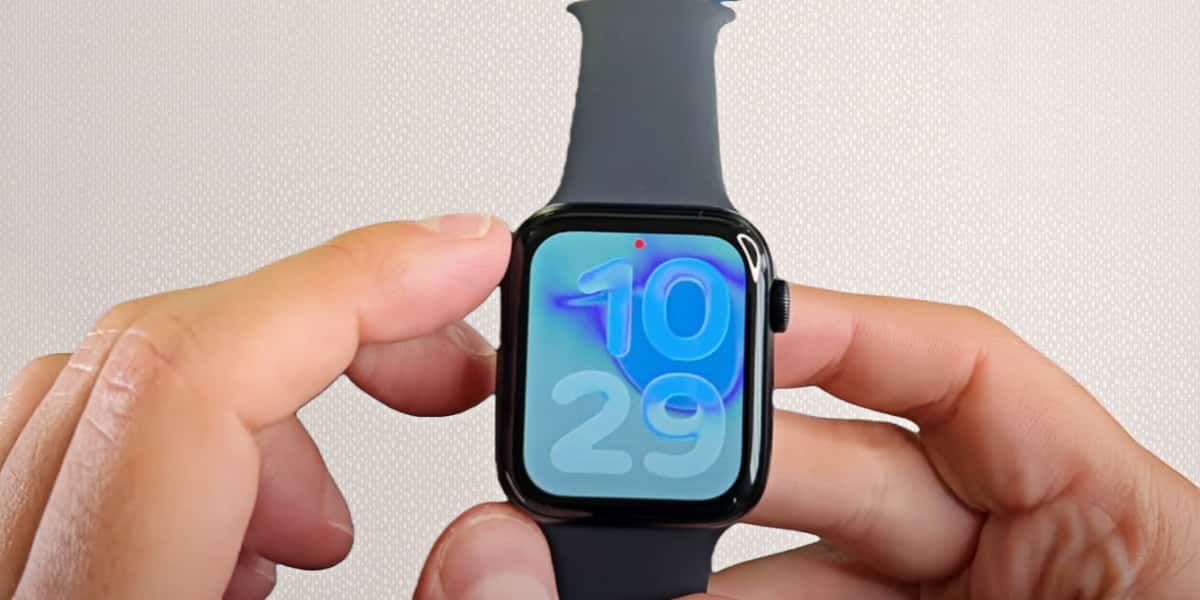
That tiny red dot on the Apple Watch looks harmless — until it shows up and refuses to leave your sight. If you’ve ever noticed it and thought, “Did I miss something?”, you’re in good company.
Sometimes it’s doing its job. Sometimes it feels like it’s there for no reason at all. Either way, it’s not a sign that anything is broken.
Once you understand what it’s tied to, it becomes easy to manage — check what’s waiting, tidy up your notifications, or turn the indicator off entirely.
What the Red Dot on Apple Watch Means — and When It Matters
At its core, the red dot is part of how the Apple Watch handles notifications. It appears when there’s something you haven’t checked yet and disappears once everything has been viewed. There’s no urgency built into it, and it isn’t meant to flag problems.
It’s simply a notification indicator
The red dot shows up when at least one notification on the watch remains unread. It doesn’t rank importance or priority — it only reflects whether something has been checked.
- Messages or replies you haven’t opened
- Reminders that haven’t been viewed
- App alerts you’ve allowed to appear on the watch
In everyday use, the dot functions more as a visual reminder than a call to action. Some people rely on it to keep track of notifications, while others barely notice it at all. How useful it feels depends largely on how you use your watch and how much information you prefer to see on the screen.
It’s not a warning, and it’s not hardware-related
The red dot isn’t connected to system errors, hardware faults, or performance issues. It doesn’t indicate that anything is wrong with the watch itself.
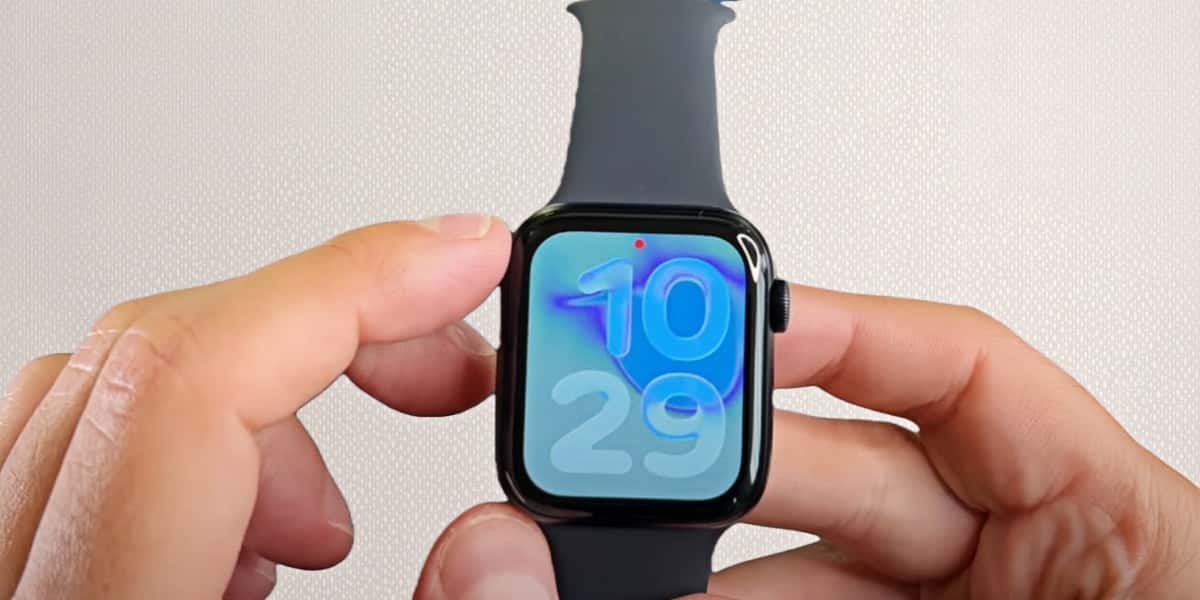
Part of the confusion comes from how the dot is presented. It sits at the top of the watch face, uses a strong colour, and can appear even when nothing seems immediately relevant. Visually, it stands out — but functionally, it’s different from alerts related to battery, connectivity, or system status.
Once that distinction is clear, the dot tends to fade into the background. For most people, it becomes a small, routine part of using the Apple Watch rather than something that needs attention.
Why the Red Dot Can Appear With No Notifications
There are times when the red dot stays on even though there’s nothing obvious to check. In most cases, this doesn’t mean a notification is hiding somewhere — it’s simply a mismatch between what’s already been handled and what the watch is still showing.
Handled on another device
This often happens when a notification is cleared on another device, such as an iPhone or Mac, but the change hasn’t fully shown up on the watch yet.
- The notification is dealt with elsewhere
- The watch continues to show it as unread
Until the watch refreshes its view, the red dot can remain in place even though there’s nothing new to open.
When settings don’t quite match
The dot can also appear when notification settings between the iPhone and the watch aren’t perfectly aligned. Apps don’t always behave the same way across devices, especially when their notification options differ.
From a day-to-day perspective, this makes the dot feel unnecessary or out of place — even though it’s only reflecting how notifications are being handled across devices.
How to Turn Off the Red Dot on Apple Watch
If you don’t find the red dot useful, you can switch it off. Your notifications will still come through — you just won’t see the dot as a reminder on the watch face.
Disable the notification indicator in settings
This removes the red dot from the top of the watch face.
On the Apple Watch
- Press the Digital Crown to open the app list.
- Open Settings.
- Tap Notifications.
- Turn off Notification Indicator.
On the iPhone (Watch app)
- Open the Watch app on your iPhone.
- Tap Notifications.
- Turn off Notification Indicator.
Note: Turning this off doesn’t reduce notifications — it only removes the red dot. You’ll need to check Notification Centre manually if you want to keep an eye on what’s waiting.
Adjust notification mirroring behavior
If the red dot feels like it’s always there, it’s often because too many apps are mirroring notifications to the watch. Reducing that noise can make the dot more meaningful when it does appear.
- Open the Watch app on your iPhone.
- Tap Notifications.
- For apps you don’t need on your wrist, turn off mirroring (or disable their watch notifications).
- Social apps and promo-heavy apps
- News apps (unless you want breaking alerts)
- Apps you always handle on your phone anyway
The goal isn’t to silence your watch — it’s to keep the red dot for notifications you actually care about.
When the Red Dot Stays On
In rare cases, the red dot can stick around even after you’ve checked everything and adjusted your settings. When that happens, it’s usually just the watch needing a quick reset of its state — not a sign of anything serious.
Try a simple refresh first
Before doing anything else, it’s worth giving the watch a moment to catch up.
- Swipe down to open the Notification Centre, even if it looks empty.
- Pause for a few seconds, then return to the watch face.
For many people, this is enough to clear the dot.
Restart the watch if needed
If the dot is still there, a restart usually does the trick. This clears minor background hiccups and doesn’t affect your data.
- Press and hold the Side Button until the power options appear.
- Turn the watch off.
- Press and hold the Side Button again until the Apple logo appears.
If the red dot disappears after this, there’s nothing more you need to do. If it shows up again occasionally, it’s generally safe to ignore — it doesn’t indicate a problem with the watch.
Conclusion
The red dot isn’t trying to warn you about anything. It’s simply one of those small interface choices that you either find useful, or don’t.
After a while, most people stop thinking about it entirely — which is probably how it was meant to work.
FAQ
How do I get rid of the red dot on my Apple Watch?
You can turn it off in the notification settings. This removes the red dot from the watch face, but notifications will still come through as usual.
Does the red dot mean something is wrong?
No. The red dot simply means there’s at least one notification you haven’t checked yet. It isn’t a warning and doesn’t indicate a hardware or system issue.
Why does my Apple Watch show a red dot while charging?
Charging doesn’t affect the red dot at all. If it appears while the watch is on the charger, it’s still just indicating unread notifications.