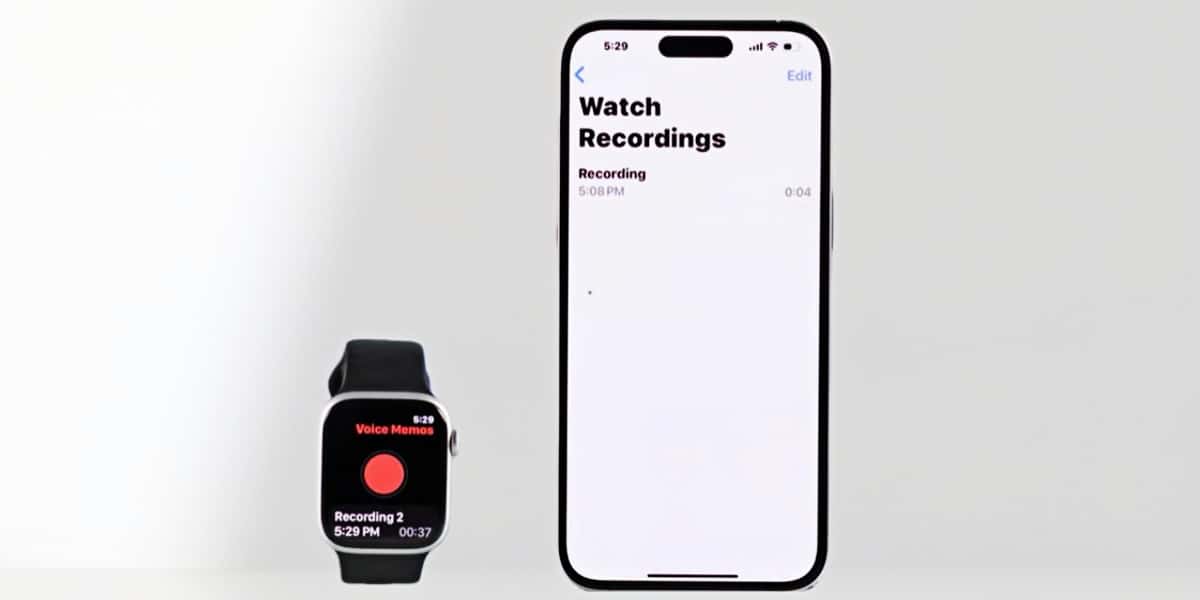
Voice memos recorded on an Apple Watch don’t always show up on the iPhone straight away. When that happens, it’s not always clear where the sync is getting stuck.
Why Voice Memos May Not Transfer from Apple Watch to iPhone
Before trying fixes, it helps to narrow down where the sync is getting stuck. The next three checks cover the most common situations.
iCloud sync is turned off
Start with iCloud. If voice memos stay on the Apple Watch and never appear on the iPhone, even after waiting, this is usually the quickest thing to rule out. Other apps may sync normally, which makes this issue easy to miss.
Voice Memos uses iCloud to transfer recordings between devices. When syncing for Voice Memos is disabled, the watch keeps the files locally and cannot pass them on to the iPhone.
What to check first
- Open Settings on the iPhone.
- Tap your name at the top to open Apple ID settings.
- Select iCloud and look for Voice Memos.
- Confirm that the toggle next to Voice Memos is turned on.
If iCloud syncing for Voice Memos is already enabled, the cause is likely elsewhere. The next checks focus on how the devices are connected.
Devices are not properly connected
Everything can look fine on the surface — the Apple Watch works normally, the iPhone has no warnings — but syncing still does not happen. In this situation, the connection between the two devices is often the weak point.
Voice memos are transferred in the background, and that process depends on a stable Bluetooth or Wi-Fi connection. Even brief interruptions can be enough to stop the transfer without showing an error.
What to check first
- Ensure Bluetooth is turned on and responsive on the iPhone.
- Look for a clear connection indicator on the Apple Watch.
- Verify that both devices are connected to the same Wi-Fi network when possible.
- If the connection feels unreliable, a short restart of both devices can help.
If the connection appears stable and syncing still does not occur, timing may be the issue rather than the setup itself.
Sync is delayed or stuck
Syncing is not always instant. Voice memos can be recorded correctly on the Apple Watch but take longer than expected to appear on the iPhone, especially when there is no clear sign of failure.
This usually comes down to background activity. iCloud may pause or slow down syncing when storage space is limited, the network is busy, or the system is handling other tasks.
Low-risk checks worth trying
- Check that there is enough free storage on the iPhone.
- Open the Voice Memos app on the iPhone to refresh the list.
- Restart both the Apple Watch and the iPhone.
- Keep both devices charging and connected to Wi-Fi for a short time.
These steps are mainly about giving iCloud the time and conditions it needs to finish syncing. In many cases, the recordings appear once the background process catches up.
More disruptive actions, such as unpairing and setting up the Apple Watch again, are best left until later. When syncing seems slow rather than broken, waiting is often the safer choice.
How Voice Memos Normally Transfer
Under normal conditions, voice memos recorded on the Apple Watch are transferred to the iPhone through iCloud. The process runs quietly in the background and usually does not require any manual action.
Because of this design, syncing does not always feel immediate or predictable. Knowing what is considered normal can help avoid unnecessary troubleshooting when nothing is actually wrong.
Transfer relies on iCloud
Voice Memos uses iCloud as the link between the Apple Watch and the iPhone. Recordings are first uploaded from the watch and then downloaded to the phone, as long as both devices are signed in to the same iCloud account.
There is no direct, local transfer between the two devices. When iCloud syncing is paused or unavailable, recordings may stay on the watch until syncing resumes.
Transfer is not immediate
Syncing voice memos is not designed to happen instantly. Transfers are handled in the background and may take longer depending on network conditions, available storage, battery levels, or other system activity.
It is common for recordings to appear on the iPhone minutes later, or sometimes longer, without any clear sign that something has failed. In many cases, the sync completes on its own once conditions improve.
Conditions that usually help syncing complete
- Both devices are connected to a stable Wi-Fi network.
- The Apple Watch and iPhone have sufficient battery charge.
- The Voice Memos app is allowed to run normally in the background.
- There is enough free storage available on the iPhone.
When these conditions are met, syncing typically finishes without further action. If recordings still do not appear after enough time has passed, the cause is more likely related to settings or connectivity rather than normal sync behaviour.
What You Can Try Next
If the situation still isn’t clear after checking the usual causes, there are a few simple things worth trying. None of these change your data or reset the device, and they are generally safe to do in any order.
Restart both devices
A restart is often enough to clear whatever is holding the sync back. It doesn’t fix settings or force anything to happen, but it gives both devices a clean start.
Worth trying
- Restart the Apple Watch.
- Restart the iPhone.
After that, give the sync some time and see if the recordings appear on their own.
Double-check Voice Memos iCloud access
If restarting doesn’t change anything, it’s worth confirming that Voice Memos is still allowed to use iCloud. This is easy to miss, especially if iCloud settings were changed recently.
Quick check
- Open Settings on the iPhone.
- Tap your name, then go to iCloud.
- Make sure Voice Memos is enabled.
If this was already on, there’s usually nothing else to adjust here.
Leave things connected for a while
When syncing is delayed rather than broken, time and stable conditions often matter more than extra steps. Letting the system run without interruptions can be enough.
Helpful conditions
- Both devices stay connected to Wi-Fi.
- The Apple Watch and iPhone have enough battery.
- Neither device is in a power-saving mode.
In many cases, the recordings show up later without anything else being done. If that still doesn’t happen, it’s a sign that something deeper may be going on, and it’s worth being cautious before trying more disruptive options.
If Voice Memos Still Don’t Transfer
If nothing has changed after trying the earlier checks, it’s worth slowing down before doing anything more disruptive. At this point, the focus shifts from fixing quickly to avoiding unnecessary risk.
Give syncing more time
When voice memos are delayed rather than broken, waiting can still be a valid choice. Background syncing does not always finish on a predictable schedule, especially after new recordings.
If you decide to wait, keep things simple:
- Keep both devices connected to Wi-Fi.
- Leave the Apple Watch and iPhone charging if possible.
- Avoid switching networks or restarting repeatedly.
If the recordings still don’t appear after a reasonable amount of time, it’s a sign that waiting alone may not be enough, and it makes sense to think carefully about the next step.
Avoid unpairing too early
Unpairing the Apple Watch is often suggested online, but it should be treated as a last resort. It resets the connection between devices and takes time to set up again, even when it doesn’t address the original problem.
Before unpairing, it’s worth confirming:
- You’ve already tried restarting both devices.
- Voice Memos is enabled in iCloud.
- The recordings haven’t appeared after waiting under stable conditions.
- You’re not at risk of losing recordings that haven’t synced anywhere yet.
If unpairing still feels necessary after these checks, it’s best to proceed carefully and make sure important data is backed up first. In many cases, taking a cautious approach here prevents more frustration later.
Conclusion
Voice memo syncing issues are rarely caused by a single obvious problem. In many cases, it comes down to timing, conditions, or small settings that are easy to overlook.
Taking the time to narrow down what’s actually happening often matters more than trying every possible fix. When things still don’t behave as expected, slowing down and avoiding disruptive changes can save more trouble than pushing further.
FAQ
Do Voice Memos transfer automatically?
Yes, in most cases they do. As long as both devices are signed in to the same iCloud account and syncing is enabled, voice memos usually transfer on their own.
That said, the transfer isn’t always immediate. Delays are normal, and a recording may take some time to show up on the iPhone even when everything is set up correctly.
Can Voice Memos transfer later?
Yes. If syncing conditions improve later on, recordings that were made earlier can still appear on the iPhone without any extra action.
As long as the memo remains on the Apple Watch and iCloud syncing is available again, the transfer can complete in the background.