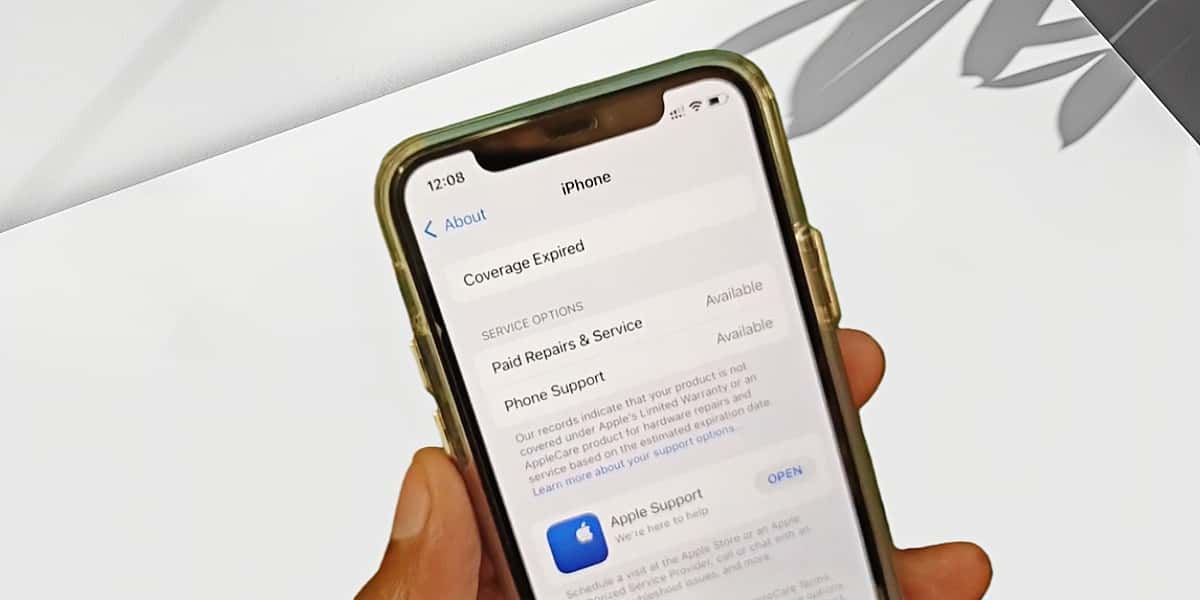
If you’ve ever checked your iPhone’s settings and noticed the message “Coverage Expired,” you’re not alone. It often appears quietly, without any clear explanation.
Some people assume it means a network issue.
What Coverage Expired Means on iPhone
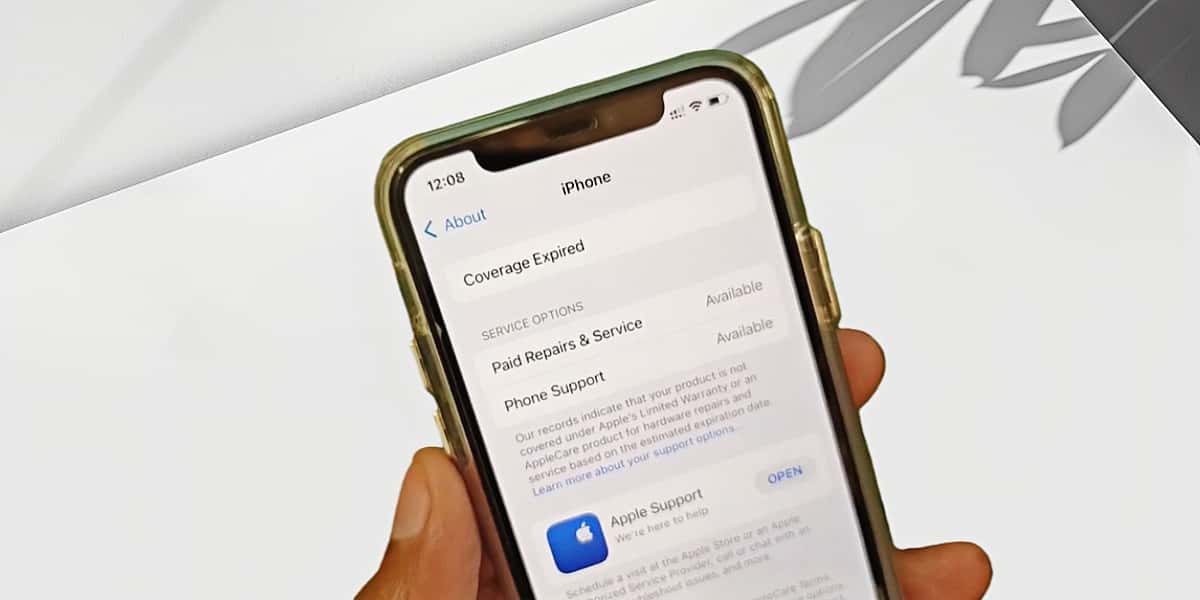
“Coverage Expired” on an iPhone means that the device is no longer covered by Apple’s limited warranty or AppleCare plan. It is a status update related to support and repairs, not an indication that something is wrong with the phone.
In other words, the message reflects a change in coverage, not a problem with the device itself.
Apple warranty or AppleCare ended
Seeing “Coverage Expired” indicates that the original warranty period, or any AppleCare coverage you had, has officially ended. This is a normal part of the iPhone’s lifecycle.
What does change is access to Apple’s complimentary services. Once coverage ends, repairs and technical support from Apple are no longer free and may involve additional costs.
- Hardware repairs, such as screen or battery replacement
- Support for accidental damage
- In-store or authorised service assistance
In some cases, AppleCare coverage may still be eligible for renewal, depending on the device and region. You can check your current status on Apple’s official warranty status page. If renewal is not available, many users simply continue using their iPhone and deal with repairs only if and when they are needed.
Not related to carrier service
This message is not related to your mobile carrier or network service.
“Coverage Expired” refers only to Apple’s warranty coverage. It has no connection to your SIM card, mobile plan, or telecom provider.
Whether Coverage Expired Affects Signal or Service
Coverage Expired does not affect everyday mobile use. As long as your carrier service is active, your iPhone continues to function normally for communication.
No impact on calls or data
Your iPhone’s ability to communicate is determined by your SIM card and mobile plan, not by Apple’s warranty status. Coverage expiration does not change how these services behave.
- Phone calls
- Text messages
- Mobile data
Why “No Service” may appear
If you see “No Service,” it is a separate issue.
This status indicates that the iPhone is not currently connected to a mobile network. It is unrelated to the “Coverage Expired” message.
- Limited or no signal in certain locations
- An issue with your mobile plan or account status
- A temporary network problem on the carrier’s side
How to Check iPhone Coverage Status
If you want to confirm your current coverage status, Apple provides a couple of simple ways to check. You only need one of them.
Check in Settings
For most people, the easiest place to look is directly on the iPhone.
Open Settings, go to General, then tap About. Under the Coverage section, you’ll see whether your warranty or AppleCare is still active, or if it has expired.
If the coverage details don’t appear there, it usually means the information is linked to your Apple ID rather than stored on the device itself.
Check using Apple’s online tool
Apple also offers an online coverage checker, which can be useful if the information doesn’t show up in Settings.
- Visit Apple’s Check Coverage page
- Enter your iPhone’s serial number (found under Settings → General → About)
- Review the coverage information shown on the page
The online tool displays the same warranty status and can help confirm whether any AppleCare coverage remains.
What to Do After Coverage Expired
For most people, seeing “Coverage Expired” does not require any immediate action. What matters is whether the iPhone is still working as expected.
If iPhone works normally
If everything is working as usual, you can simply keep using your iPhone.
“Coverage Expired” only reflects the end of Apple’s warranty or AppleCare coverage. It does not indicate a fault or change how the device behaves in everyday use.
Many users choose not to do anything at this point. Decisions about repairs or support can be made later, if and when an actual issue comes up.
If there is No Service
If your iPhone shows “No Service,” this is a separate issue.
This message relates to network connectivity rather than warranty status. It usually points to a carrier-side issue or the environment you’re in.
- Limited or no signal in certain locations
- An issue with your mobile plan or account status
- A temporary network problem from the carrier
In these cases, checking with your carrier is the most direct way to understand what’s happening. Restoring network service is independent of your Apple coverage status.
Repair options out of warranty
If a hardware problem does occur after coverage has expired, there are several repair paths available. None of them are urgent by default, and there isn’t a single “correct” choice.
- Apple-authorised service: Repairs handled by Apple or authorised providers using genuine parts.
- Apple Self Service Repair: Official parts and manuals for users who are comfortable repairing their own devices.
- Third-party repair shops: Independent repair services that may offer more flexible pricing.
Which option makes sense depends on the issue itself and how you plan to keep using the device. Many users only explore repairs when a problem actually appears.
Conclusion
Seeing “Coverage Expired” for the first time can feel a bit unsettling, mainly because it appears without much context.
For most people, it’s simply a status message that doesn’t require immediate attention. Once you understand what it refers to, it’s something you can safely leave as it is and come back to only if a real issue shows up later.
FAQ
Will my iPhone stop working
No.
“Coverage Expired” only reflects the status of Apple’s warranty or AppleCare coverage. It does not affect how the iPhone functions.
Can I still make emergency calls
Yes.
Emergency calls are not affected by warranty status. As long as a network signal is available, your iPhone can place an emergency call, including numbers like 999 in Singapore.
How long does Apple coverage last
Apple’s standard warranty lasts one year.
AppleCare extends this coverage, depending on the plan and region. You can check your specific coverage period using Apple’s official coverage checker.